
The 3D view shows the map as a surface you can rotate — the fastest way to grasp the overall shape and spot a bump or a dip. Switch to it with View › 3D. It shares the top toolbar, the Modify operations and the Reference/Diff comparison with the table view & shared tools; this page covers what is unique to 3D.

A tool strip appears only in this view:
The shared Heatmap button colours the surface by value here.
Drag to rotate, use the mouse wheel to zoom, and pan to reposition. Fit keeps your viewing angle while bringing the whole surface into view; Reset View restores the default orientation.
The surface has its own context menu with Copy/Paste (including a curve segment) and the usual selection and edit entries, oriented to the surface.
The 3D view is mainly for seeing the map. The shared Modify operations still apply to a selection, but for precise cell-by-cell edits the table view is easiest — a common workflow is to spot a rough patch in 3D, then switch to the table to fix it.
Tip — turn on the heatmap with the shaded surface: a smooth map should look smooth. A sudden spike or step usually means a typo or a cell you meant to interpolate.
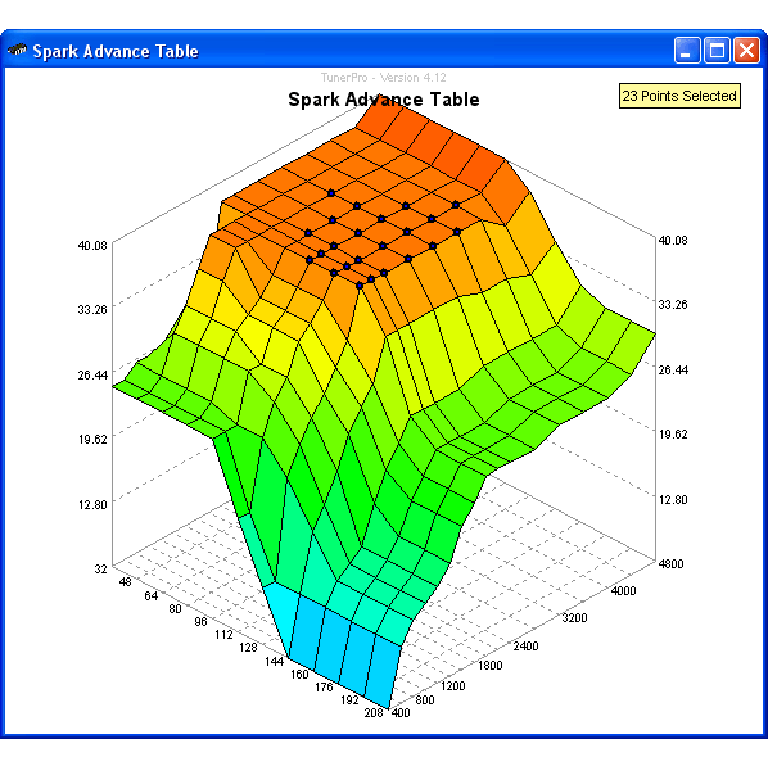
A free collection of checksum correction plugins for TunerPro that ensures safe ECU tuning. Automatically verify and update file checksums for reliable vehicle performance.
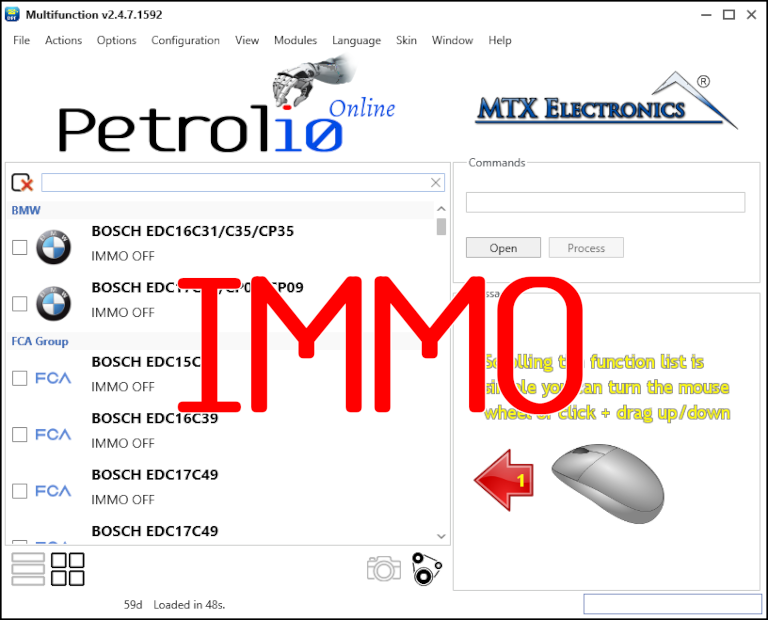
Immobilizer deactivation software for automotive professionals. Disable factory immobilizers directly in the ECU file ideal for engine swaps, track vehicles, and module replacements.
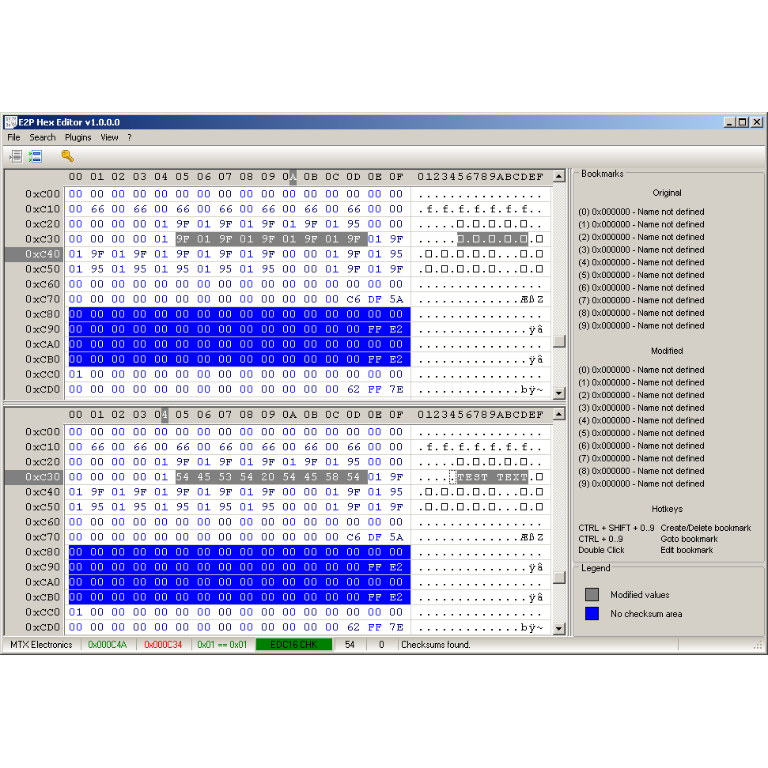
A hex editor built specifically for editing EEPROM data in automotive ECUs. With real-time checksum correction, side-by-side file comparison, and plugin support for automated tasks it's the ultimate tool for professionals.