
The map editor opens one named map and lets you view and edit it in three ways — a Table, a 2D plot or a 3D surface — chosen with the View button. This page covers the tools that are shared by every view and the Table view itself; the plot views each have their own page: the 2D view and the 3D view. Open the editor by double-clicking a map in the collection panel; it works on the active version.

These controls sit on the toolbar in every view:
The table is the spreadsheet grid: the X and Y axis values run along the edges and the data cells fill the middle. Type a value, press F2 or double-click to edit a cell; an out-of-range value is rejected and the old one kept. The table’s right-click menu carries the shared items plus two of its own: Column Size (preset widths or auto-fit) and, when comparing, Revert Selection to Reference.
The bar along the bottom has three segments: a left readout (the active cell’s address and value, plus the reference value and Δ when comparing), a centre with selection stats (count, rows × columns, min/max/average/sum), and a right context segment (the map and units, with a [REF] or [DIFF] tag when comparing).
Select a block of cells and apply a Modify operation:
The six copy formats include Copy as C Array for pasting the data into code. Every edit is undoable on this editor’s own stack.
Warning — editing a map changes the file. Correct the checksum on export, or the ECU may reject the image.
Pick a Reference version to overlay its data read-only, then turn on Diff to colour the cells by their difference: delta (current − reference), percent change, or highlight changed only. While comparing, Revert Selection to Reference restores chosen cells to the reference values.
Immobilizer deactivation software for automotive professionals. Disable factory immobilizers directly in the ECU file ideal for engine swaps, track vehicles, and module replacements.
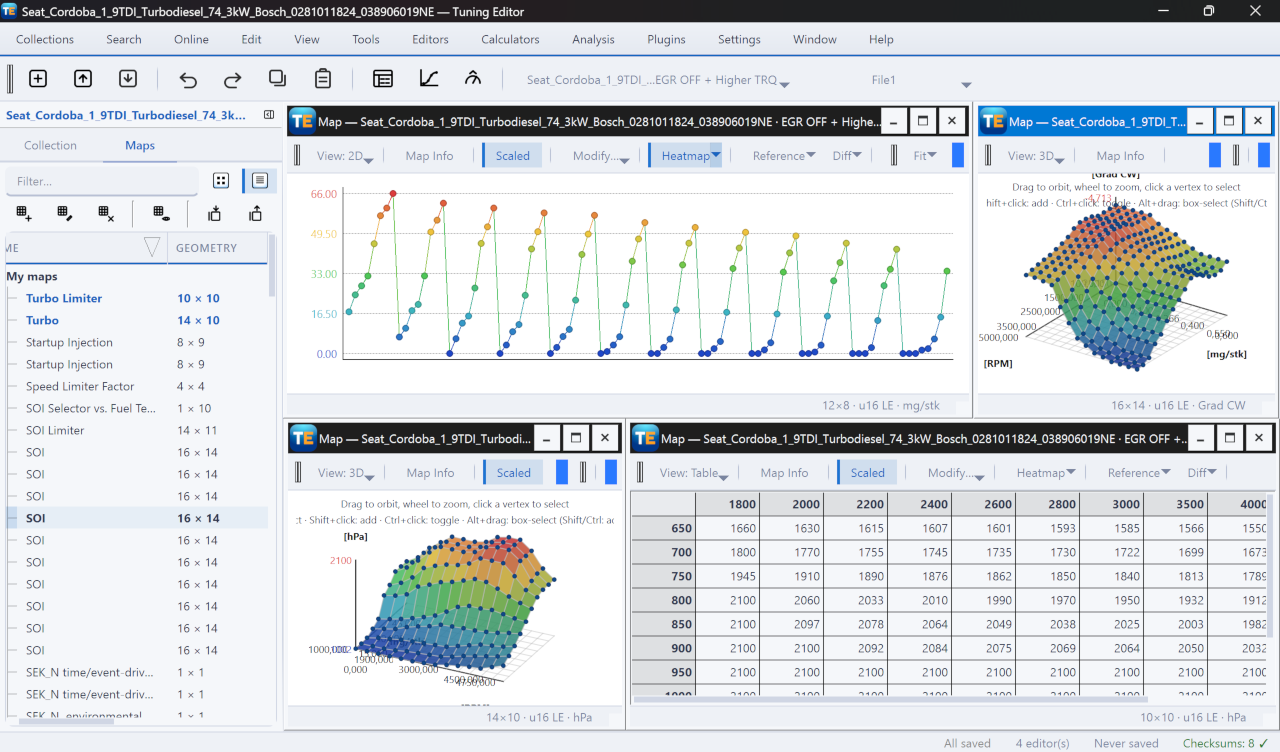
A free, modern Windows software for viewing and editing ECU calibration data - map and hex editors, tuning calculators, and online services.
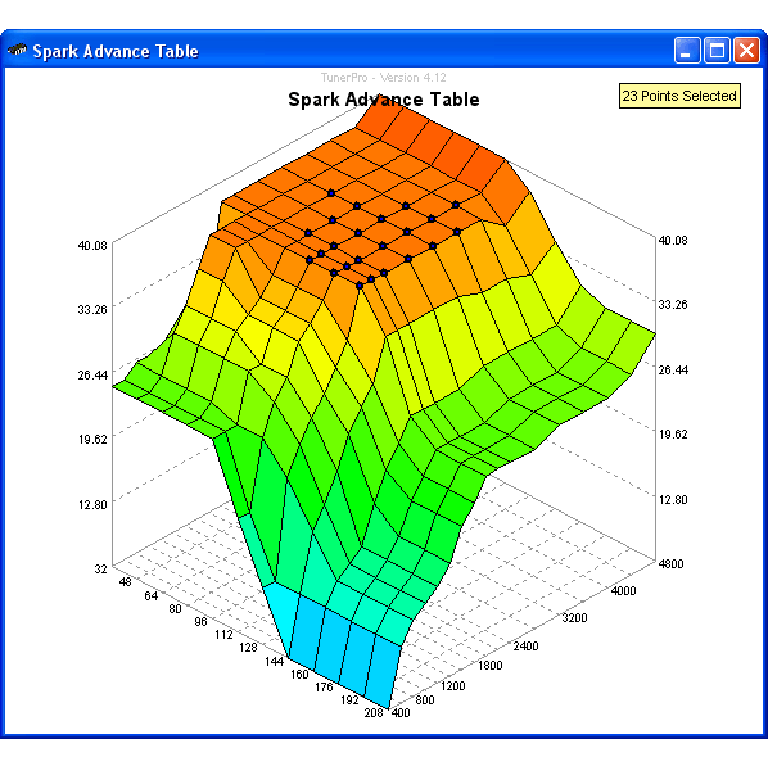
A free collection of checksum correction plugins for TunerPro that ensures safe ECU tuning. Automatically verify and update file checksums for reliable vehicle performance.