
A collection is the project container for one ECU job. It holds the ECU’s memory sections, the versions of the calibration you are working on, the job metadata, and any comments — all in a single sealed .mtxCol file. The collection panel on the left is where you browse and manage it.

A section is one memory region of the ECU — typically the flash, sometimes a separate EEPROM — carrying a function tag and the bytes for that region. A collection can hold several. In the Memory Sections list you can Add, Edit or Remove a section; the one marked (active section) is the region the editors and the toolbar section picker act on. The panel also shows the maps inside the active section — double-click one to open the map editor.
A version is one variant of the calibration across all sections — the stock read, a stage 1 tune, a customer revision, and so on. Two versions are special:
In the Reference & Versions list you can Add a version (by importing a binary), Edit or Remove one. To see how a tune differs from the reference, compare the two (see comparing & navigating files).
Tip — keep the stock read as the original version and add each tune as a new version. You always have an untouched baseline to compare against and fall back to.
Use the Collections menu (or the toolbar) for New (Ctrl+N), Open (Ctrl+O), Save (Ctrl+S), Save As (Ctrl+Shift+S) and Close (Ctrl+W), with a Recent list for quick reopening. Saving writes a single sealed .mtxCol — self-healing and optionally password-protected (see file security). To get bytes into a collection, import a binary; to get them out, export.
Open the properties editor (Properties, Alt+Enter) to record the job’s metadata, grouped into Client, Vehicle, ECU, Engine, Output (PS/HP and kW) and Project (type and a free-text comment). Fill empty fields from ECU analysis populates what it can from the detected ECU.

Note — this metadata is not just for reference: it feeds the export filename placeholders and helps the online search features identify a file. The more you fill in, the more the rest of the app can do for you.
You can attach comments to a specific region of a version — each with a title, body text and author — shown as a coloured overlay on that part of the binary. They are a handy way to record what a change does or why.
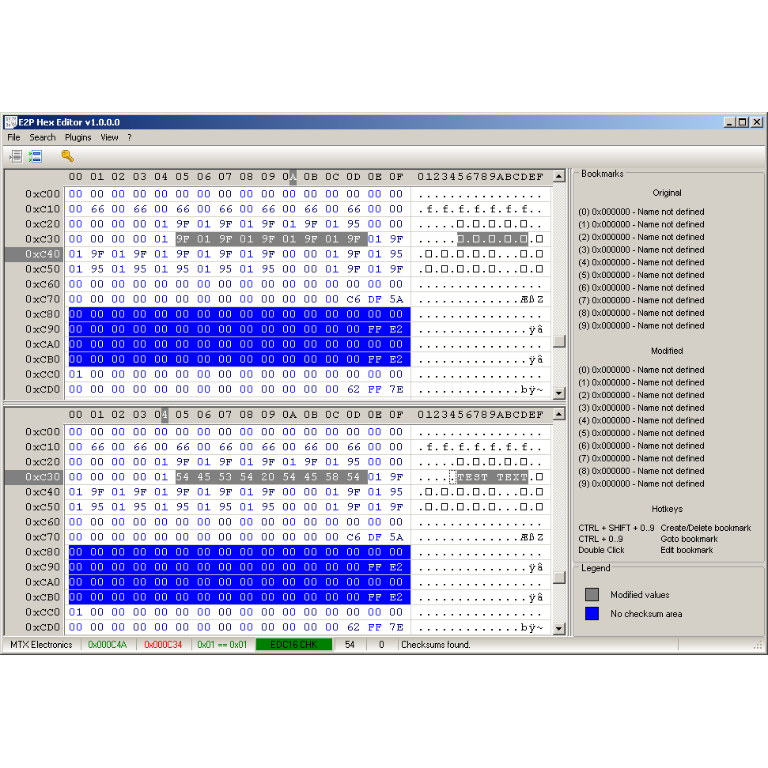
A hex editor built specifically for editing EEPROM data in automotive ECUs. With real-time checksum correction, side-by-side file comparison, and plugin support for automated tasks it's the ultimate tool for professionals.
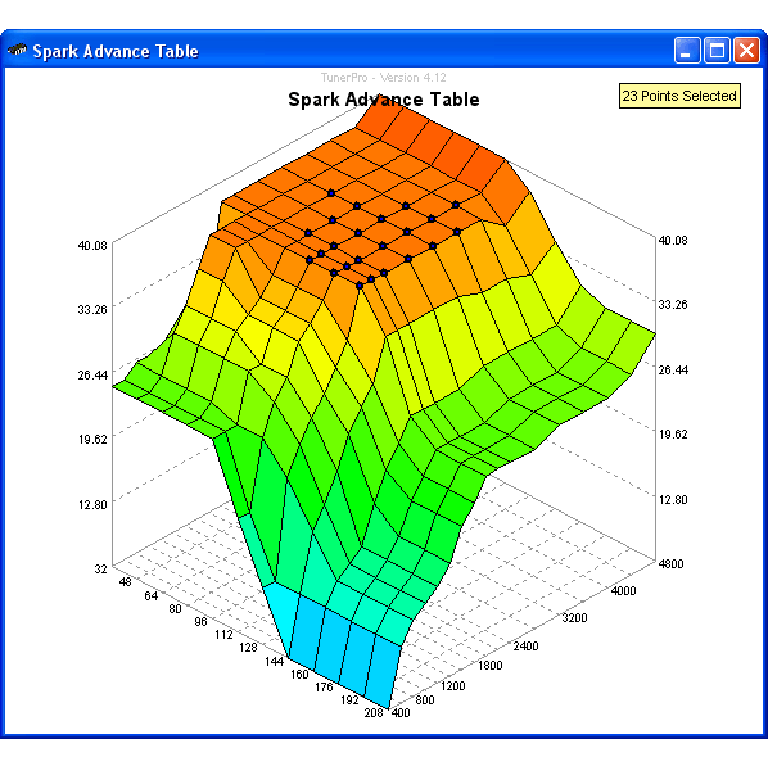
A free collection of checksum correction plugins for TunerPro that ensures safe ECU tuning. Automatically verify and update file checksums for reliable vehicle performance.
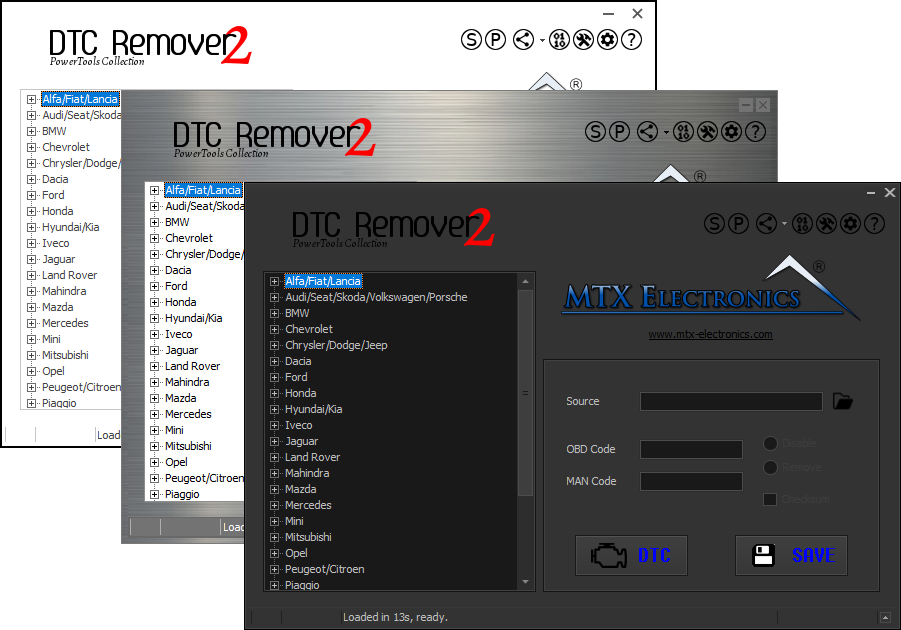
Lets you quickly disable fault codes to turn off the MIL light directly from your ECU file. Available in Standard and PowerTools editions with advanced scripting and online presets to remove faults by component groups.