
The Catalog Manager turns your labeled Collections folders into a single, searchable library. A background indexer reads every sealed .mtxCol file into a local catalog, so you can browse the whole set, rank files by how similar their contents are, compare the slots open in the editor, and keep the library tidy — all without opening each file by hand. It lives in the Collections menu and opens in its own window with three tabs: Browse, Search and Compare slots.
Note — the catalog indexes the folders you keep in Indexed database mode. If your collection storage is set to Single file, collections are opened and saved by hand and are not catalogued. See Storage modes below.

Everything is reached from the Collections menu:
Browse lists every indexed collection, newest first, with a live text filter (vehicle, ECU, software number, client…) and a folder scope selector to show all folders or just one. The Columns button chooses which property columns appear; drag headers to reorder or resize them and the layout is remembered. Selecting a row opens the drill-down panel on the right with a Details tab (every property) and a Comments tab (the project notes). From a row you can Open in editor, Reveal on disk, or press Find similar to this — which opens the file and jumps to the Search tab with it already set as the anchor. In Indexed-database mode a Save to selector sets the default folder new collections are written to.

Search ranks the catalog against an anchor — one of the files you have open in the editor. Pick the anchor, choose what to match on with Find, and run. Results are shown with percentage meters so the best matches stand out at a glance:
A result reaches 100% / Identical only when the bytes are the same — that is an exact match by SHA-256 and size, not a similarity score.
Tip — start from Browse and press Find similar to this: it sets the anchor for you and switches straight to this tab.

Compare slots builds a similarity matrix of the slots you currently have open in the editor — every slot against every other — shaded as a heat-map so clusters of related calibrations are obvious. It is the quick way to see how a set of files you are working on relate to one another without touching the catalog on disk.
Right-click a row (in Browse or Search) for file management, which works on a single file or a multi-selection:
Manage Folders maintains the labeled folders the catalog watches: add a new one, rename its label, or remove it from the index (its files are left on disk). One folder is the protected Default. In Indexed-database mode, saving a brand-new collection routes it to your chosen default folder with an auto-generated filename — because files are opened through Browse and Search, not by name. If no default is set, saving asks which folder to use.
Every collection carries a unique identifier inside its sealed project. Copying a .mtxCol in the file system (or restoring a backup) produces two files that share one id. Copies made with the Catalog Manager’s own Copy to are re-identified automatically, but files copied outside the app are not. Collections › Find Duplicate IDs… groups the catalog by shared id and lets you resolve each group — Assign new UUID, Re-ID all but the oldest (keeping the earliest-indexed file unchanged), or Delete the redundant copies. Re-identifying never alters the calibration bytes, so similarity scores are preserved.
The catalog depends on the Collection storage setting in Preferences › Defaults › General. In Indexed database mode (the default) collections live in labeled folders under Documents/TuningEditor/Collections and are catalogued and searchable. In Single file mode you open and save any .mtxCol anywhere, and the catalog is not used. You can switch at any time; existing files are not moved.
Go Back to the Sections
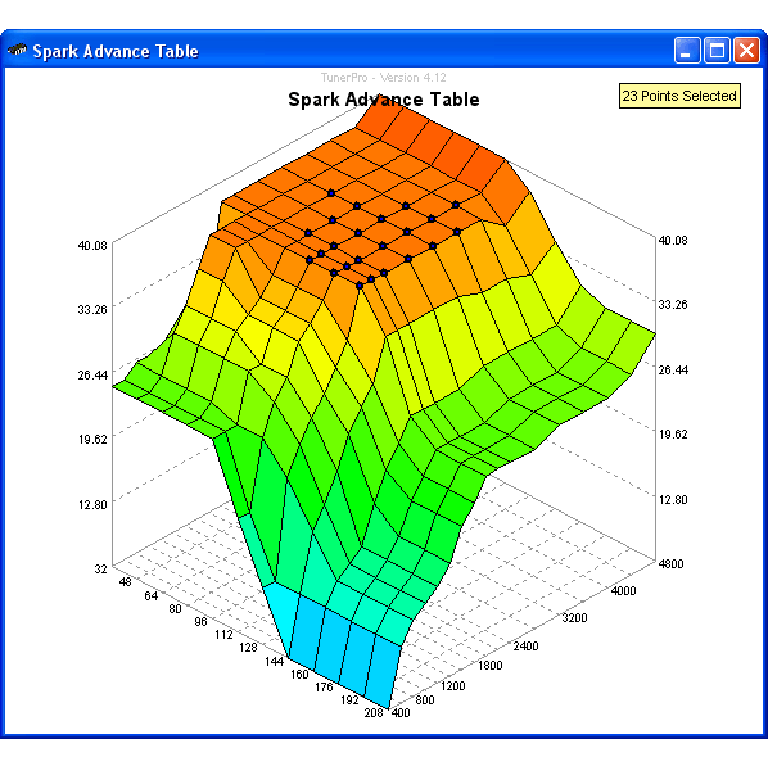
A free collection of checksum correction plugins for TunerPro that ensures safe ECU tuning. Automatically verify and update file checksums for reliable vehicle performance.
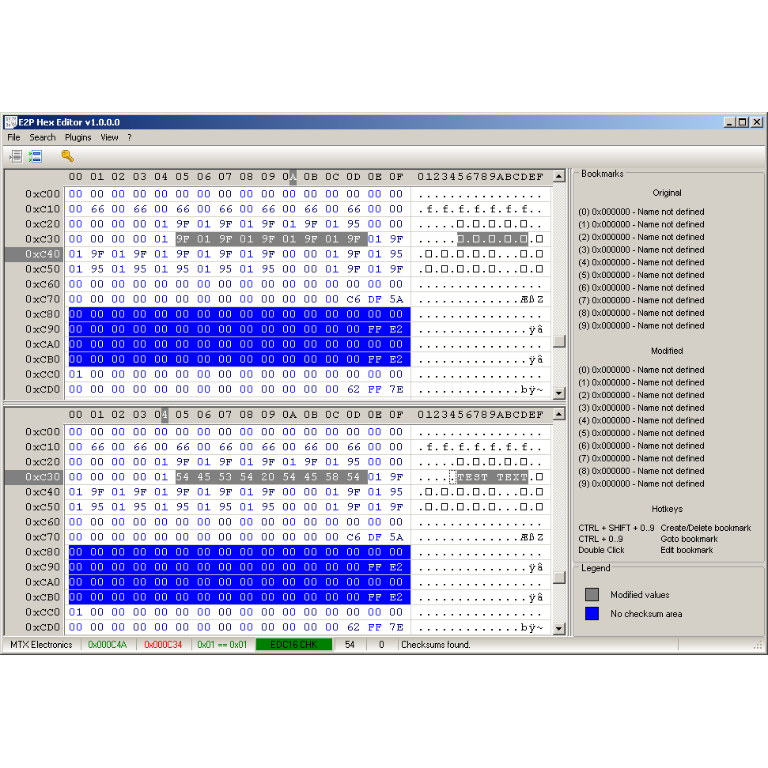
A hex editor built specifically for editing EEPROM data in automotive ECUs. With real-time checksum correction, side-by-side file comparison, and plugin support for automated tasks it's the ultimate tool for professionals.
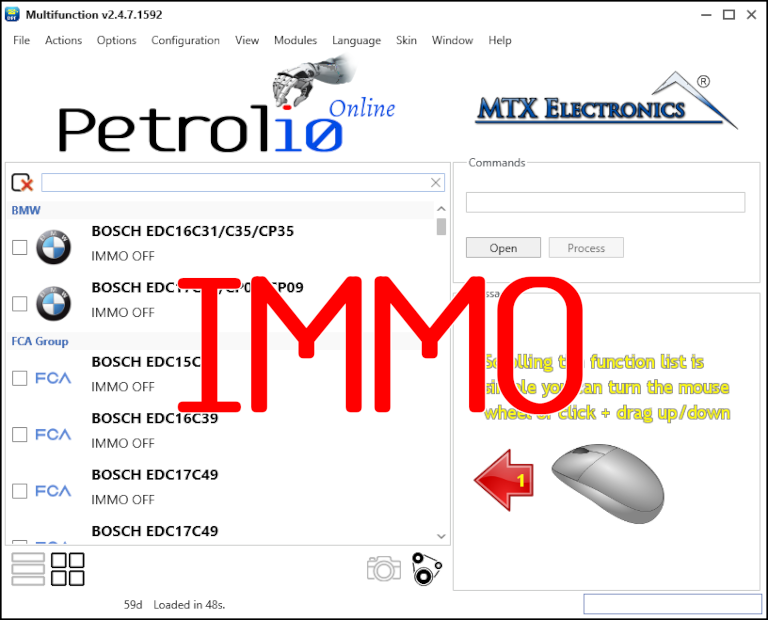
Immobilizer deactivation software for automotive professionals. Disable factory immobilizers directly in the ECU file ideal for engine swaps, track vehicles, and module replacements.