
Importing brings a ROM image — a read from a programming tool or a dump file — into a collection so you can work on it. (Tuning Editor edits the file; reading from and writing to the ECU is done with your own tool.) Open it from Collections › Import › Import Binary (Ctrl+Shift+B).

Three formats are built in: raw BIN (.bin), Intel HEX (.hex) and Motorola S-record (.s19, .s28, .s37, .srec, .s). Installed I/O plugins can add more, and they then appear in the file picker alongside the built-in ones.
A raw .bin is taken byte-for-byte. A text format (HEX or S-record) stores data as address records, so Tuning Editor parses it into one contiguous image: it takes the lowest address as the base address and fills any gaps with 0xFF (the usual erased-flash value), reporting how many gaps were filled. A file with an implausibly large gap (more than 16 MB) is rejected rather than turned into a huge sparse image.
Note — a known.hexor S-record extension is trusted as text. For a.bin(or unknown extension) the first record is validated structurally, so a raw image that merely happens to begin with “:” or “S” is still read as raw bytes, not mis-parsed.
After the file is read, a dialog asks where the bytes should go. The detected format and base address are shown at the top, and you have up to three choices:
Tip — importing a tune next to its stock read? Add it as a new version so the original stays intact, then compare the two (see comparing & navigating files).
Import Binary works whether or not a collection is active: if none is open, importing creates a fresh one to hold the image. To bring in many files at once, use batch import instead.
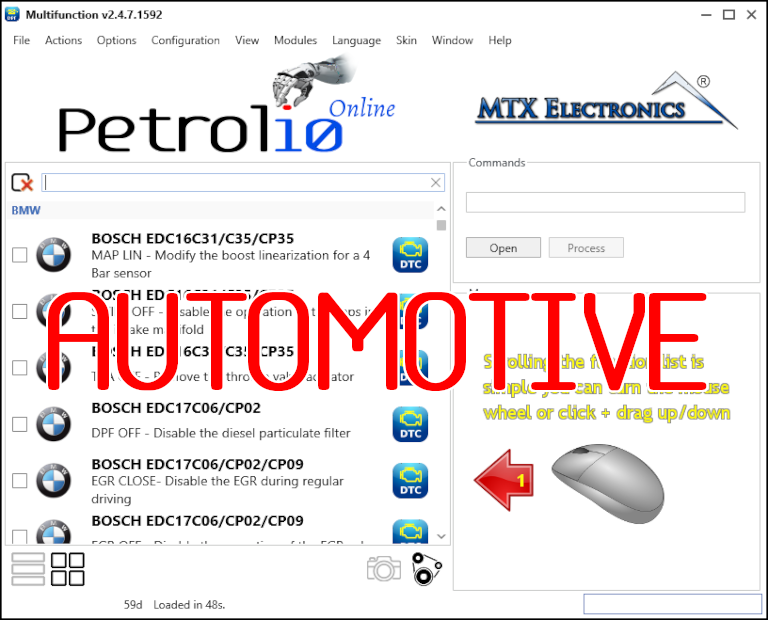
All-in-one application for tuning experts preparing vehicles for track use. Designed for professional workshops, it simplifies the deactivation of non essential components to unlock true performance.
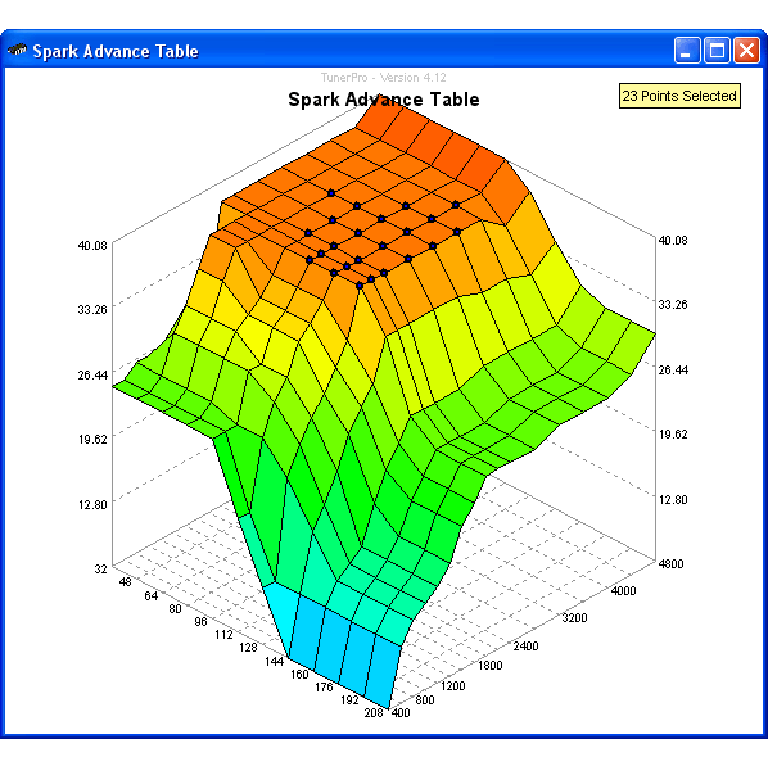
A free collection of checksum correction plugins for TunerPro that ensures safe ECU tuning. Automatically verify and update file checksums for reliable vehicle performance.
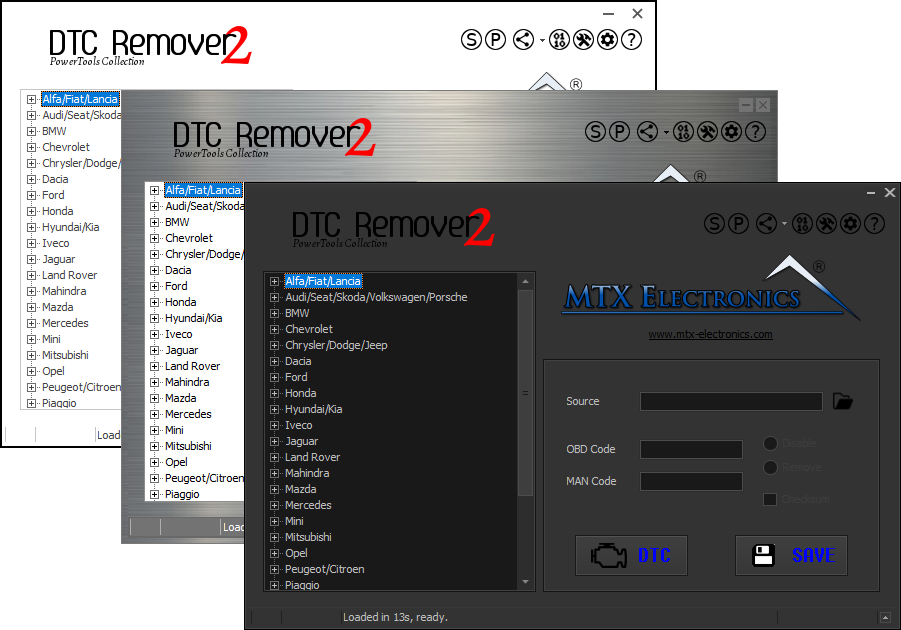
Lets you quickly disable fault codes to turn off the MIL light directly from your ECU file. Available in Standard and PowerTools editions with advanced scripting and online presets to remove faults by component groups.