
This page maps the whole Tuning Editor window and links every command to the page that explains it in full, so you always know where a feature lives.

The window has four parts: the menu bar across the top, the Main Toolbar below it, the collection panel on the left, the work area of editor windows in the centre, and the status bar along the bottom.
Thirteen menus group every command by purpose.
Everything about collections: New, Open, Save, Save As, Close, Properties (collection details) and Recent. The Export submenu holds Export Binary, Export Batch Binary and Export Map Definitions; the Import submenu holds Import Binary, Import Batch Binary, Import A2L Symbol File and Import Map Definitions. Quit closes the app.
Find Similar Files — scan folders for binaries resembling a target.
Find Files Online, Find Similar Files Online and Automatic Tuning — the features that use your online account.
Undo, Redo, Copy, Paste and Select All. These act on whichever editor has focus and use the standard system keys (see keyboard shortcuts).
Full Screen, Reset Layout, Hide Side Panels and Show Collection Panels control the workspace (below). Pair Offset Window and Navigation Window open the two tools for comparing & navigating files.
Your own external tools, plus Configure Tools to manage them.
Hex Editor and the 2D File Editor open editor windows on the active data. (The map editor opens by double-clicking a map.)
All open from here: Unit Conversions, Air Flow Estimation, Fuel Estimation, Mechanical Calculator, Turbo Calculator and Cam & Valvetrain — see engineering calculators.
Log Analyzer, and the Turbo and Cam analyzers.
Commands added by installed UI/extension plugins (empty if none are installed).
Preferences — language, theme, online sign-in and editor defaults.
Arrange the editor windows: Cascade, Tile, Tile Vertically / Horizontally, and Next / Previous Window; a live list of open windows sits at the bottom.
Keyboard Shortcuts, Installed Plugins, Check for Updates, and About.
The toolbar keeps the most common actions one click away, in groups: New / Open / Save; Undo / Redo / Copy / Paste; Hex Editor / 2D File Editor / AutoTune. On the right, a version picker shows the active collection and version (click to switch either), and a section picker switches the active file section.
The bar along the bottom is informative and partly clickable:
The collection panel on the left lists open collections and their sections and versions; hide it (and other side panels) with Hide Side Panels (Ctrl+B), or toggle an individual collection’s strip from Show Collection Panels. The centre is a multi-document work area where each editor opens in its own window. Reset Layout (Ctrl+Alt+R) restores the default arrangement.
Tuning Editor offers Light, Dark and System themes (with a matching icon set), set on the General tab of Preferences.

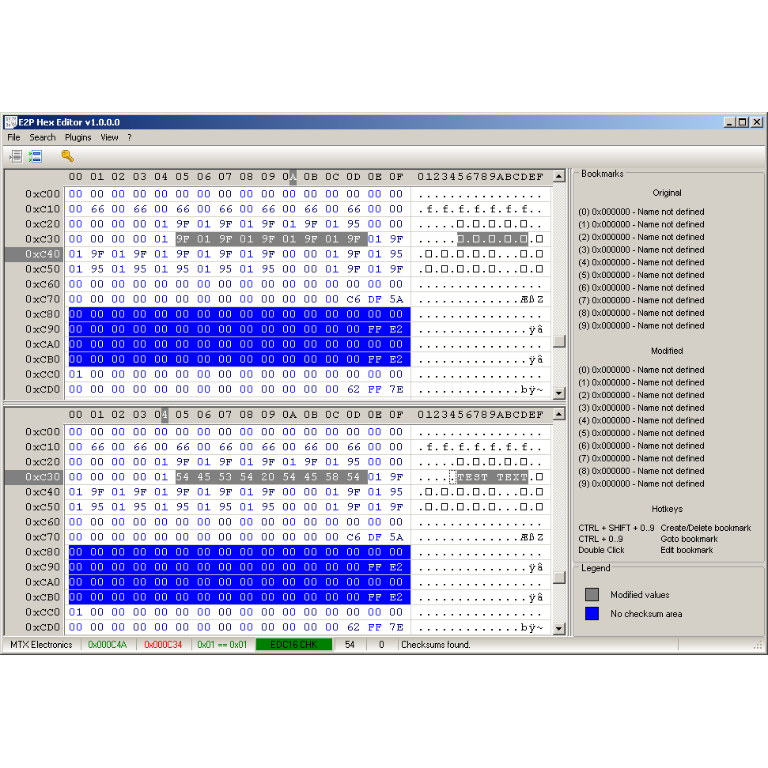
A hex editor built specifically for editing EEPROM data in automotive ECUs. With real-time checksum correction, side-by-side file comparison, and plugin support for automated tasks it's the ultimate tool for professionals.
Immobilizer deactivation software for automotive professionals. Disable factory immobilizers directly in the ECU file ideal for engine swaps, track vehicles, and module replacements.
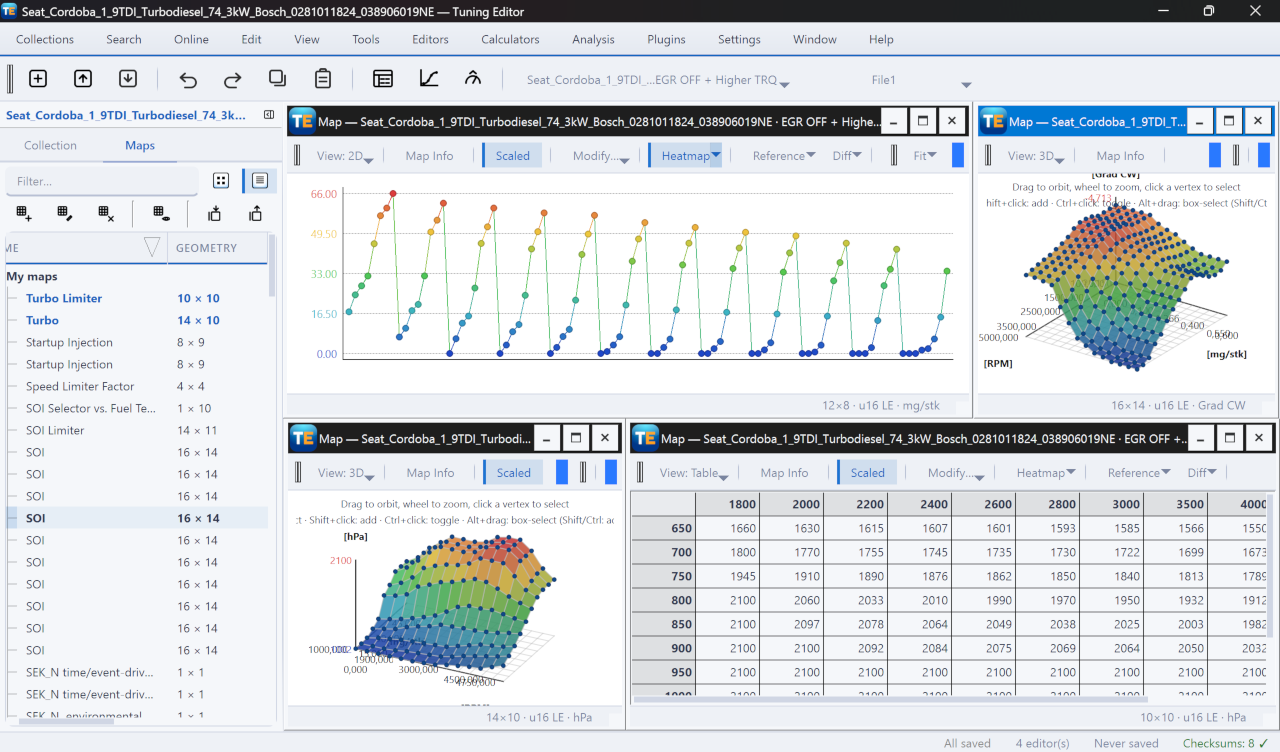
A free, modern Windows software for viewing and editing ECU calibration data - map and hex editors, tuning calculators, and online services.