Logo

Select a Section

What is Tuning Editor
An introduction to Tuning Editor — the free Windows application for viewing and editing ECU calibration data — and to the core ideas used across the rest of this documentation.
ECU tuning basics & glossary
A plain-language introduction to the core ECU-tuning concepts used throughout this documentation — what an ECU, ROM and map are, how raw and physical values relate — plus a glossary of key terms.
The workspace & interface
A quick tour of the Tuning Editor main window — the MDI workspace, the menus, the floating tool windows and the side panels — so the rest of the documentation shares a common vocabulary.
Your first calibration: a guided walkthrough
A beginner-friendly, end-to-end walkthrough — from opening an ECU binary to making a small, safe edit, correcting the checksum and exporting — linking to the detailed page for each step.
Collections, sections & versions
How a collection is organised into ECU memory sections and versions, how to create, open and save one, and where to edit its properties.
Importing binaries
How to import an ECU binary into a collection — supported formats with automatic detection, and the new-section, new-version and replace options.
Exporting binaries
How to write a collection's section binaries back to disk — choosing the format, the sections and versions, optional checksum correction and a templated filename.
Hex editor
View and edit the raw bytes of one binary slot — the hex grid and ASCII pane, go-to address, add/subtract and fill, diff against another version, and notes.
2D file editor
View an entire binary section as a single numeric trace in your chosen data type and byte order — useful for seeing structure across a whole file and editing it as points.
Map editor: table view & shared tools
Edit one calibration map as a table, a 2D plot or a 3D surface — with a heat gradient, reference/diff overlays, a full set of bulk operations and scaling-aware copy/paste.
Map editor: the 2D view
The 2D plot view of the map editor: zoom, point selection and curve editing.
Map editor: the 3D view
The 3D surface view of the map editor: rotate, shade and inspect the overall shape.
Editor colours
Shade table cells by value with the heatmap, and set the colour palette used across every editor.
Comparing & navigating files
Pair two editors to scroll them together, align them with the Pair Offset Window, step through their differences, and move around a binary quickly with the Navigation Window.
Map packs
Bundle a collection's maps into a portable file and reuse them on other binaries — exporting to mtxPack, JSON or CSV and importing back by matching addresses.
Importing A2L symbol files
How to turn an ASAP2 / A2L symbol file into ready-made map definitions on a binary — selecting which maps to import, the byte order and how they are grouped into sections.
Batch import binaries
Turn a folder of raw ECU dumps into collections in a single pass — scanning off-thread, extracting metadata, grouping into versions and sections, then committing in memory or to a folder.
Batch export binaries
Export the section binaries of a whole folder of collections in one pass — choosing the format, which versions, optional checksum correction and the output layout, with flat memory use.
File security & the password ring
How the .mtxCol format keeps projects safe and recoverable — authenticated AES-256, a self-healing repair layer, optional internal and external passwords, and the portable password ring.
How plugins work
How Tuning Editor loads native plugins and the two types it supports — checksum/detection and UI/extension — plus the Installed Plugins manager.
Checksums & detection plugins
How the checksum view reports the detected ECU and the validity of each checksum block — and how correction is applied automatically when you export a binary.
The Generic Checksum plugin
How the bundled, configurable Generic Checksum plugin verifies and corrects integrity checksums — driven entirely by a JSON profile, with no code — so you can cover ECUs the built-in plugins do not.
The log analyzer
Import data logs with separator and decimal auto-detection, plot the channels over time, and replay a log through your map editors so the operating cells light up live.
Importing logs
The three-step wizard that brings CSV/TSV logs into the analyzer, and reusable presets.
Replaying logs over your maps
Bind log channels to map axes and replay the log, lighting the operating cell on the map editor.
Calculators & unit conversions
A suite of tuning calculators — unit conversions, airflow and fuel estimation, mechanical and compression-ratio math, turbo sizing and cam/valvetrain — each in its own window.
Air Flow Estimation
Estimate the engine's air demand (CFM and mass flow) across the rev range.
Fuel Estimation
Work out fuel demand, injector size and pulse width, and injection timing.
Turbo Calculator
Size forced induction: mass flow, pressure and temperature, and the operating point.
Mechanical Calculator
Engine geometry, compression ratio and piston motion.
Cam & Valvetrain
Cam timing, valve and port flow, spring dynamics and piston-to-valve clearance.
Analyzers
Two graphical analyzers on the Analysis menu — the turbo analyzer visualises compressor behaviour, and the cam analyzer plots a cam profile lift, velocity and acceleration.
Turbo Analyzer
Sweep the rev range and trace the compressor operating line on its map.
Cam Analyzer
Plot intake and exhaust valve lift, velocity and acceleration through the cycle.
Online account & sign-in
How to sign in to the online services — one shared account that powers the online archive and Automatic Tuning, with your downloaded files, credit balance and subscription.
Find similar files (Offline)
Locate ROMs similar to a target file by fuzzy similarity — either by scanning local folders, or by searching the shared online archive.
Find original files (Online)
Browse and search the shared online file archive by brand and ECU, then save or import the files you acquire.
Find Similar Files (Online)
Match a file against the online library by binary similarity, ranked by closeness.
Automatic Tuning (Online)
Submit a stock ECU read to the online AutoTune service and receive a tuned file — a catalog-driven request, background job tracking, purchase, download as a new version, and rating.
Preferences
A tour of the Preferences dialog and its three tabs — General, Online Features and Defaults — covering language and theme, the online sign-in, and editor behaviour.
External tools
Add your own programs to the Tools menu — with arguments, a run mode and a shortcut — and pass them the active file path and other details through placeholders.
Keyboard shortcuts
The most useful keyboard shortcuts, plus the built-in filterable reference that always reflects the current menus.
Automatic Software Updates
How to keep Tuning Editor current — updates are free, with an automatic startup check and an in-app Check for Updates command, or download the latest installer manually.
Troubleshooting
Answers to common questions — requirements, protected files, recovering a damaged collection, and how to reach support.
Frequently asked questions
Short answers to the questions people ask most often, each linking to the full page for the detail.
Build your own checksum plugin
A developer guide to the checksum/detection plugin ABI — the C exports, the one memory-ownership rule, analyze vs correct, the optional config dialog, and how to build and test a native plugin.
Build your own UI/extension plugin
A developer guide to the UI/extension plugin ABI — the C exports, the host API, undoable cell edits, the live overlay, the strict UI-thread rule, events, and how to build a plugin.
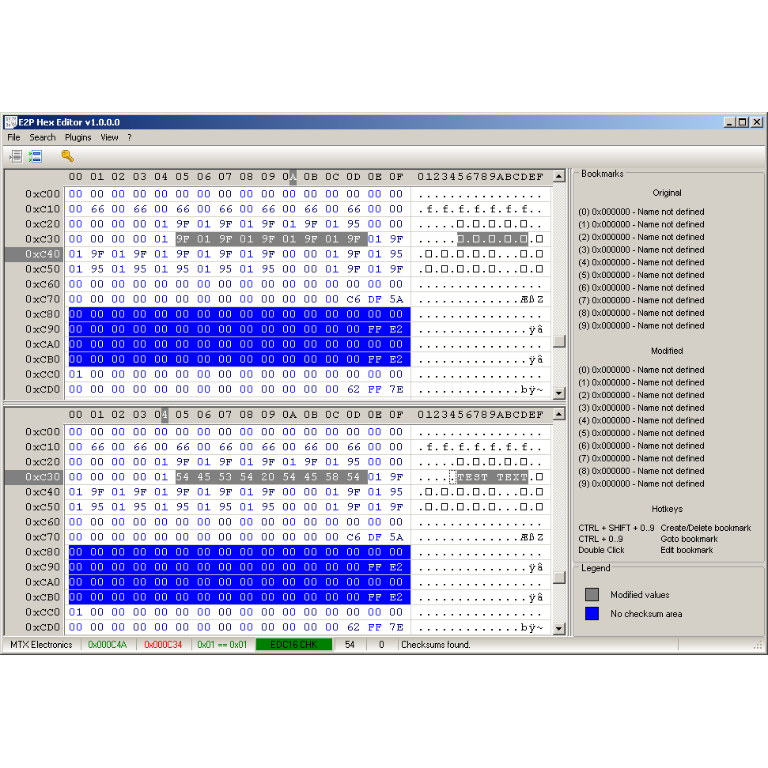
EEProm Hex Editor

EEProm Hex Editor

A hex editor built specifically for editing EEPROM data in automotive ECUs. With real-time checksum correction, side-by-side file comparison, and plugin support for automated tasks it's the ultimate tool for professionals.
TunerPro Checksum Plugin Pack

TunerPro Checksum Plugin Pack

A free collection of checksum correction plugins for TunerPro that ensures safe ECU tuning. Automatically verify and update file checksums for reliable vehicle performance.

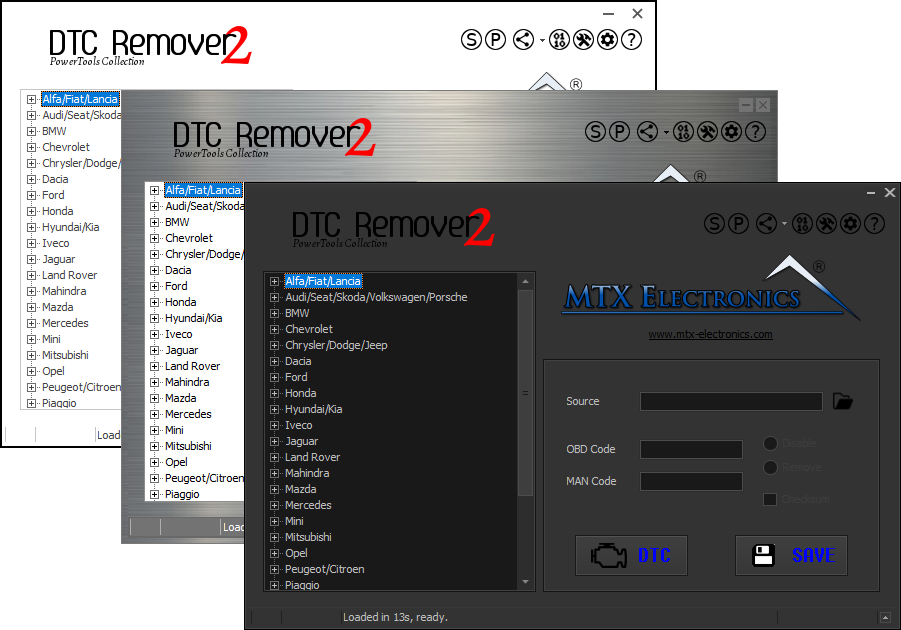
DTC Remover - Clear Fault Codes with Precision

DTC Remover - Clear Fault Codes with Precision

Lets you quickly disable fault codes to turn off the MIL light directly from your ECU file. Available in Standard and PowerTools editions with advanced scripting and online presets to remove faults by component groups.