
The hex editor shows the raw bytes of the active section and lets you read, compare and edit them directly — useful when a value is not covered by a named map. Open it from Editors › Hex Editor (Ctrl+H); it works on the active version’s active section.

The toolbar runs along the top, in groups from left to right:
Right-click anywhere in the grid for the full command surface — more than fits on the toolbar:
0x… or decimal).The floating Navigation and Pair Offset windows do the same jobs in a dockable panel — see comparing & navigating files.
The bar along the bottom has three segments:
[REF] or [DIFF] tag when a comparison view is active.With the Diff view on, the editor compares the current version against the chosen reference: show the reference value, the delta (current − reference), or the percent change, and highlight changed only to hide everything identical. Use the Navigation menu’s Previous / Next Difference to step between the changes.
Select cells — a linear range or a rectangular block — then apply a Modify operation: Fill sets them all to one value, Add/Subtract shifts them, Multiply scales them, Interpolate lays a linear ramp across the selection, and Smooth averages neighbours. Copy and paste move values between selections. Every edit is undoable, and Read-only protects a file you only mean to inspect.
Warning — editing raw bytes changes the file’s integrity value. Correct the checksum on export, or the ECU may reject the image.
A note attaches a comment (title and text) to a span of bytes, shown as a coloured overlay. Add one from a selection, edit or delete it later, and step between notes. Notes are metadata, so they stay available even in read-only mode — they are the same region comments you see across the collection.
Tip — hunting for a table? Turn on the heatmap and adjust the column count until a rectangular block lines up — that regular pattern is usually a map, which you can then open in the 2D editor.
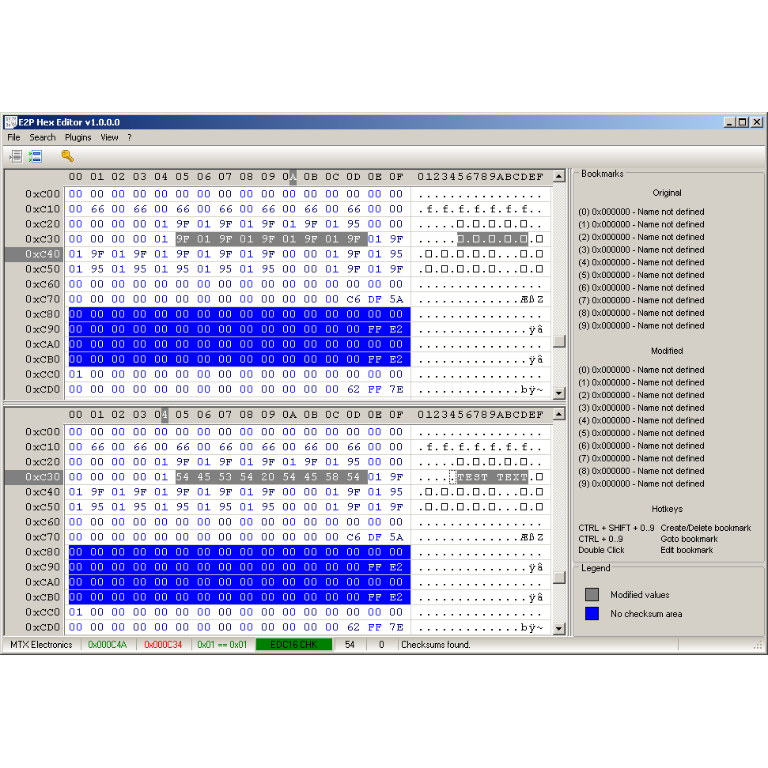
A hex editor built specifically for editing EEPROM data in automotive ECUs. With real-time checksum correction, side-by-side file comparison, and plugin support for automated tasks it's the ultimate tool for professionals.
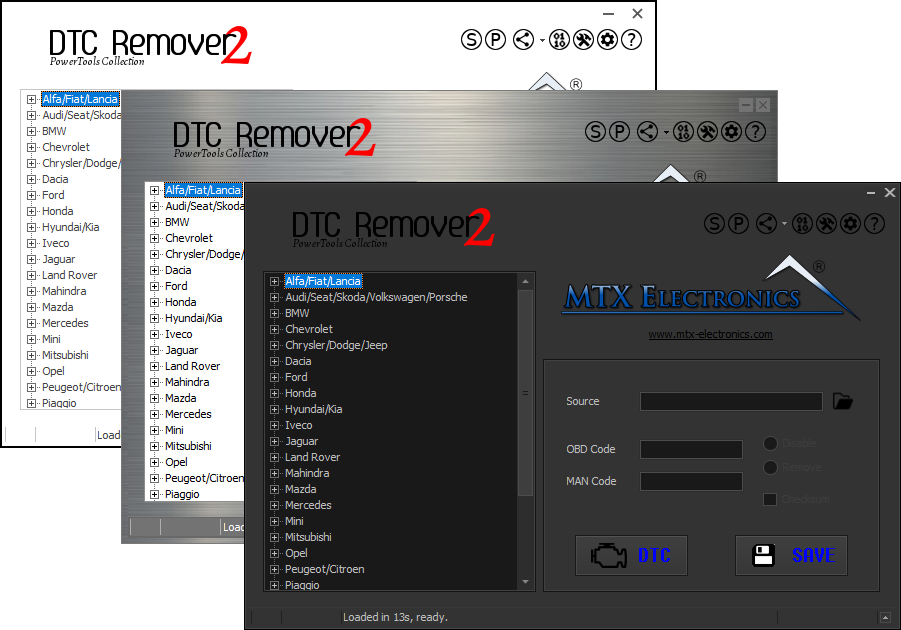
Lets you quickly disable fault codes to turn off the MIL light directly from your ECU file. Available in Standard and PowerTools editions with advanced scripting and online presets to remove faults by component groups.
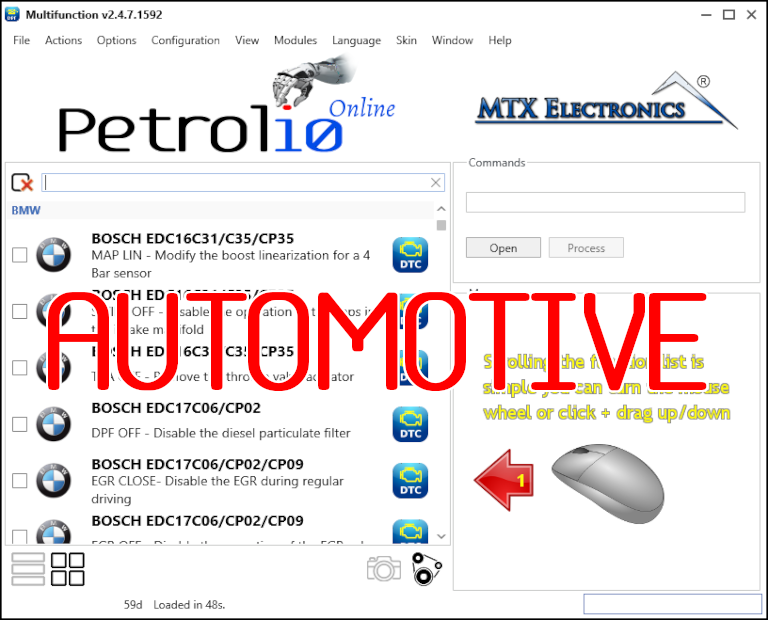
All-in-one application for tuning experts preparing vehicles for track use. Designed for professional workshops, it simplifies the deactivation of non essential components to unlock true performance.