
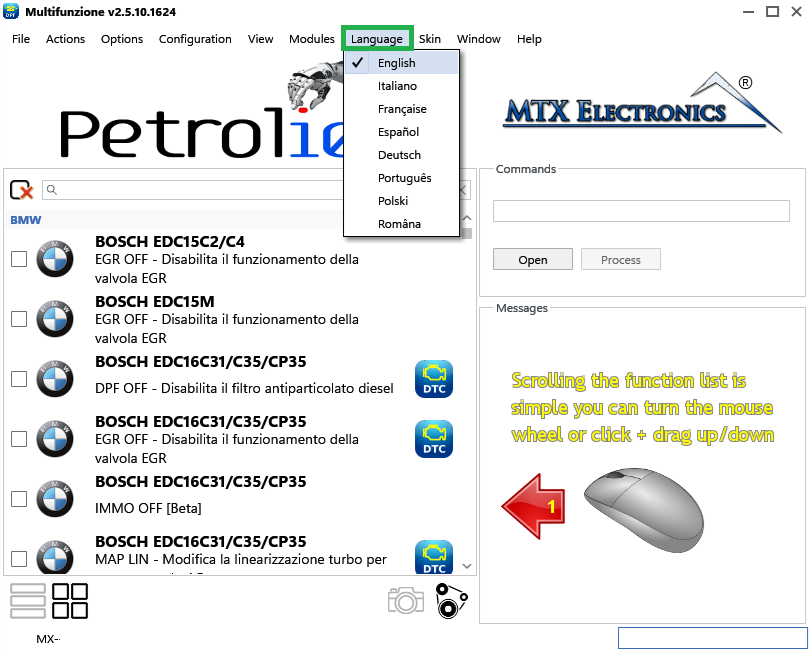
In Petrol10 you can change the program language and customise how it works. The language can be set to Italian, English, Spanish, French, Portuguese, Polish, Romanian or German.
To change the language, select it from the Language drop-down menu (Figure 1).
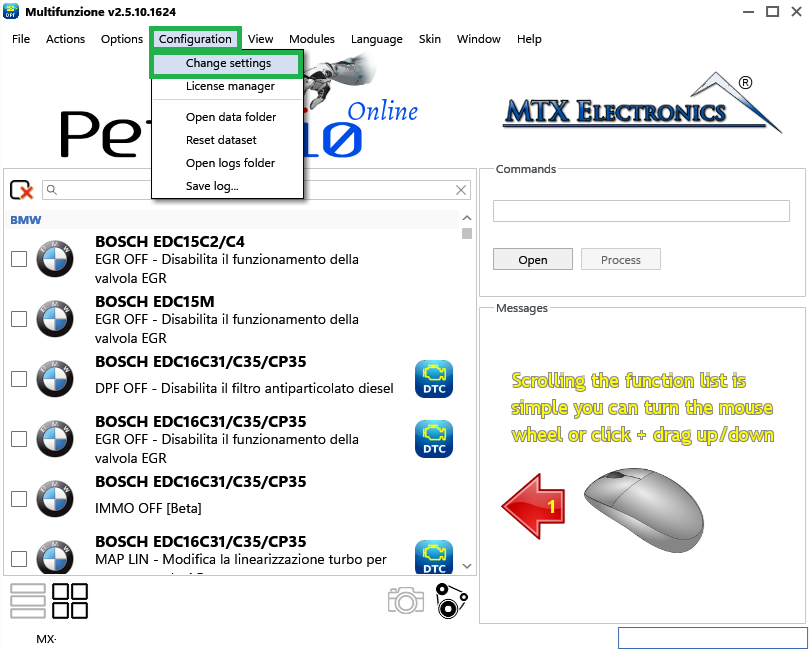
To change the settings, open the Configuration menu and click Change Settings (Figure 2).
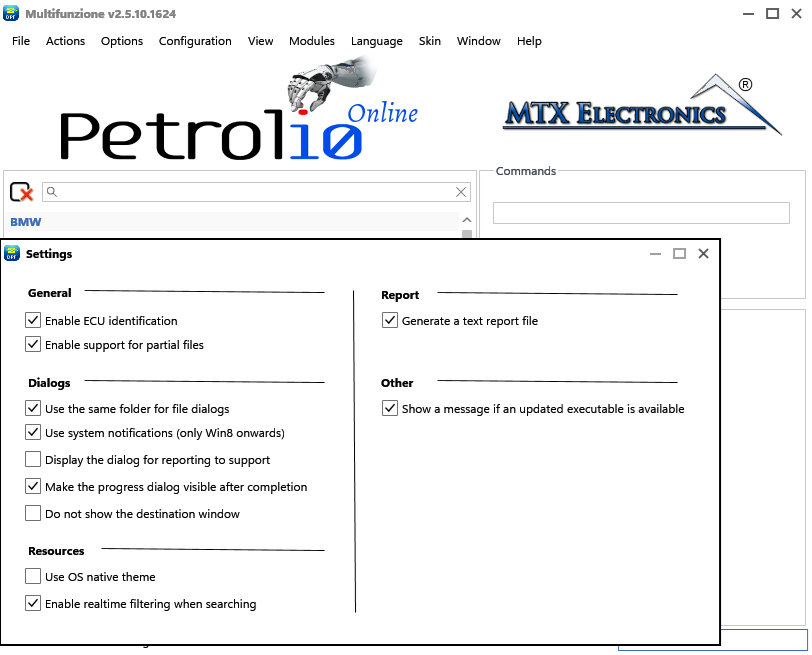
A window opens (Figure 3) where you can customise the software — for example, enable the use of partial files by checking the appropriate box.
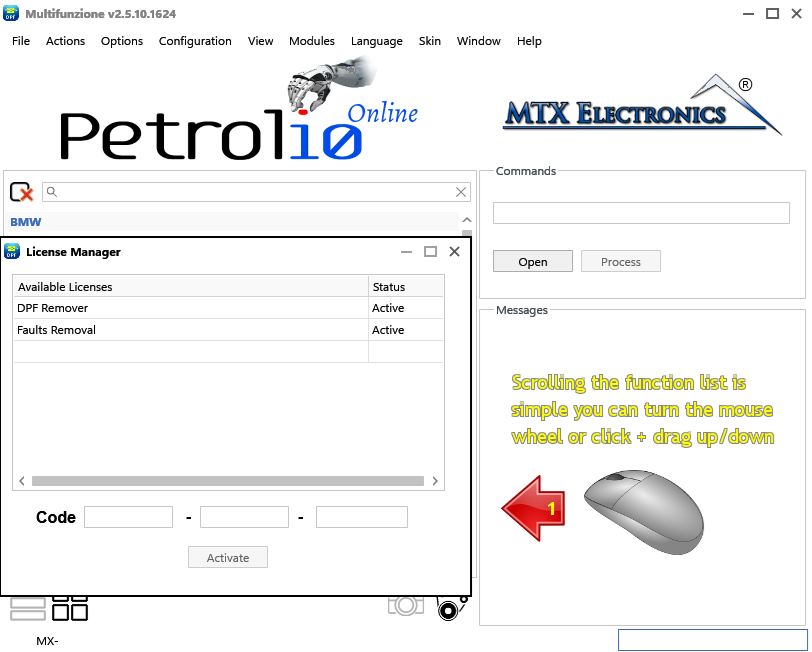
From the Configuration menu you can also open the License Manager (Figure 4), which lists the active licences for your dongle. You can add a new one by entering its serial number in the CODE field and clicking Activate.
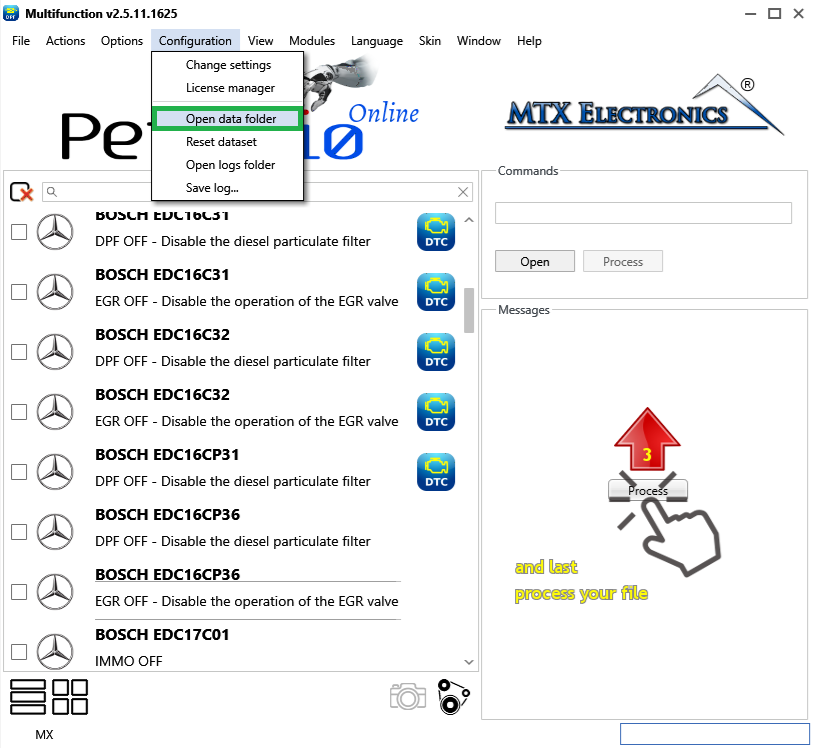
Open data folder (Figure 5) quickly opens the Windows folder where the Petrol10 configuration files are stored.
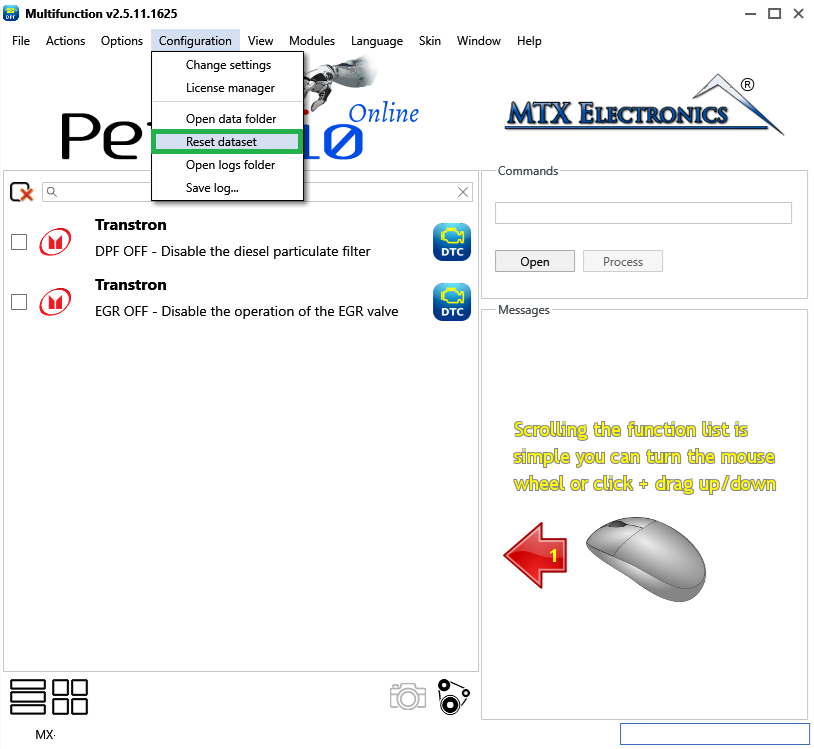
Reset dataset (Figure 6) re-initialises the software, erasing everything it has learned during use and returning the dataset to its initial state.
Warning — Resetting the dataset cannot be undone — it clears everything the software has learned. Use it only if you want to start completely fresh.
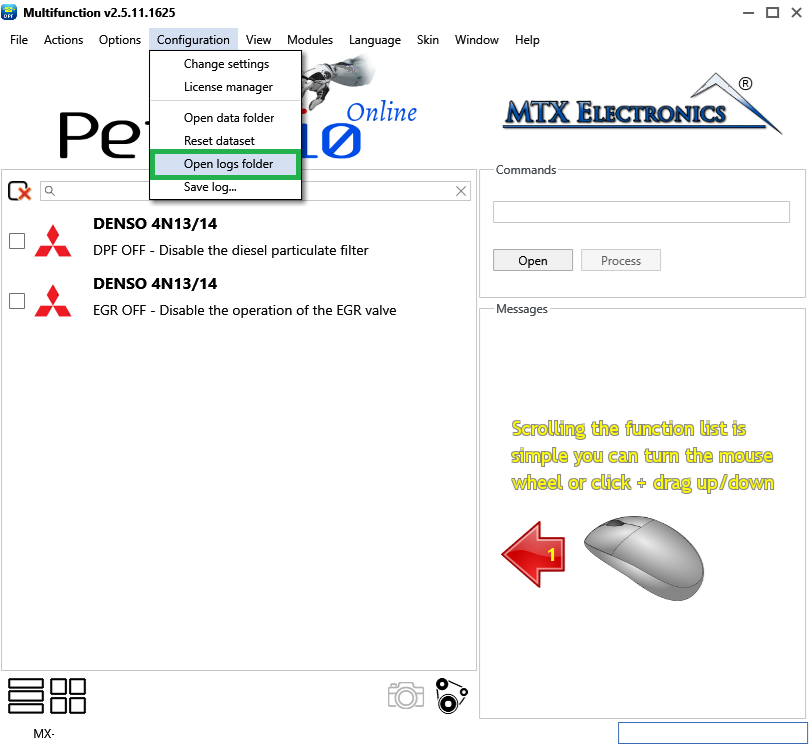
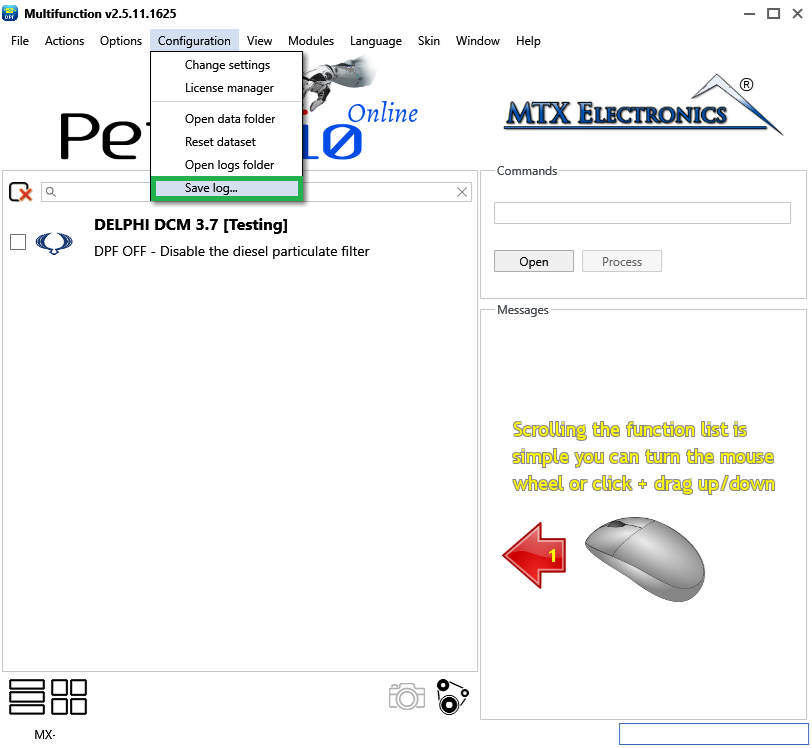
The last two options are Open Logs Folder (Figure 7) and Save Log (Figure 8): respectively, they open the folder where all the software logs are saved, and save the log of the last processing session.
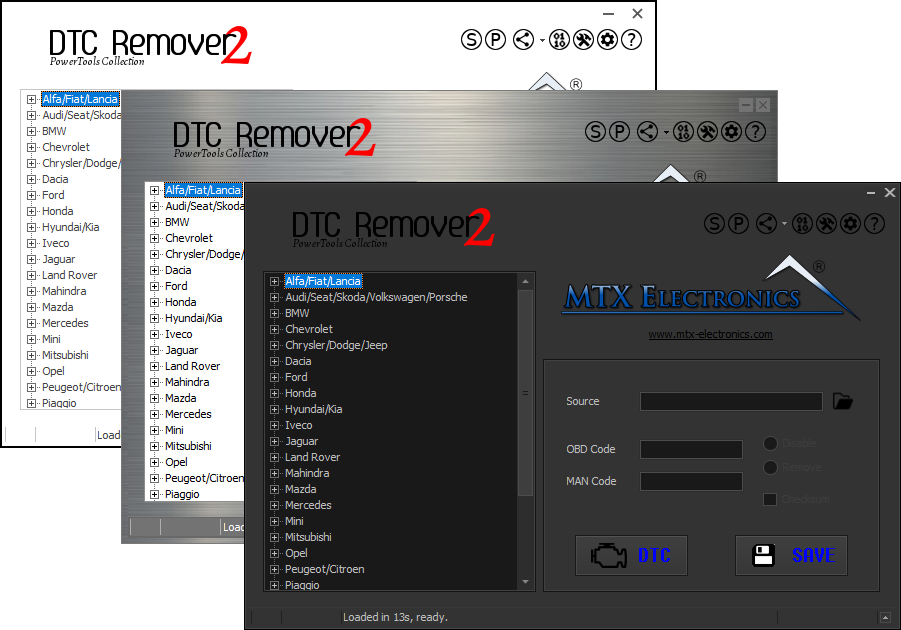
Lets you quickly disable fault codes to turn off the MIL light directly from your ECU file. Available in Standard and PowerTools editions with advanced scripting and online presets to remove faults by component groups.
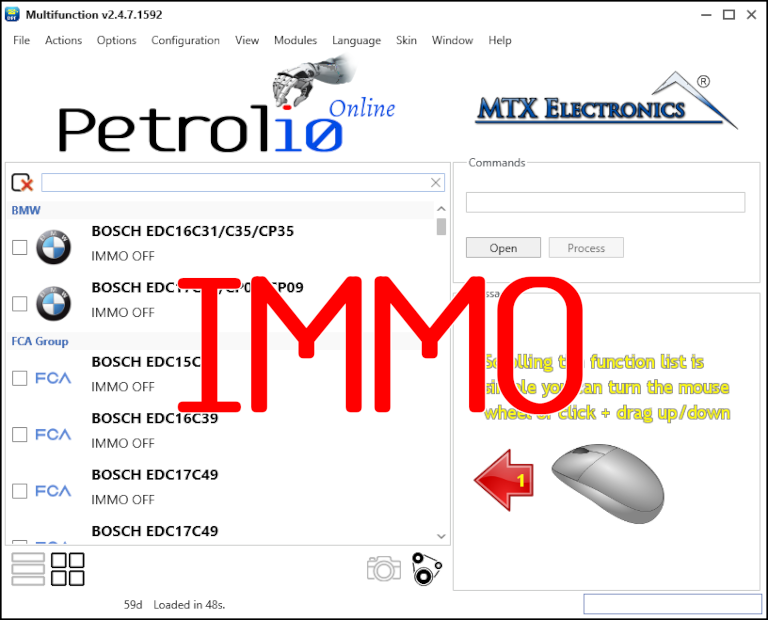
Immobilizer deactivation software for automotive professionals. Disable factory immobilizers directly in the ECU file ideal for engine swaps, track vehicles, and module replacements.
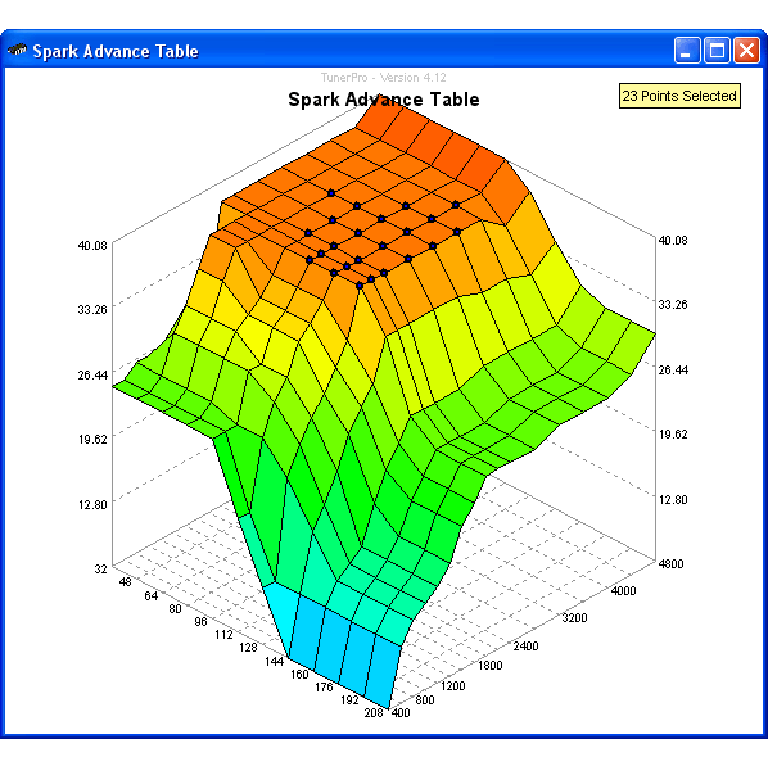
A free collection of checksum correction plugins for TunerPro that ensures safe ECU tuning. Automatically verify and update file checksums for reliable vehicle performance.