Logo

Select a Section

How to download the software from the website
To download the software, log in to the website with your credentials via the Login link in the top-right corner, then open the License Manager from the same menu to download the full version of your purchased software.
How to install the software on the computer
A step-by-step guide to installing Petrol10 (DPF Remover): language, licence agreement, component selection, desktop shortcuts, and the first-time USB driver installation for the protection dongle. A restart is advised before launching.
Start a new job and save it once you've made changes
Open a file from File › Open, by dragging it into the Commands area, or with the Open button; once you have made your changes, save everything with File › Save as...
Overview of the software interface and features
A general overview of the Petrol10 interface: the top menu, the solution list (single and multiple selection), filtering by manufacturer or control unit, keyword search, the command and message areas, the status bar, and the DTC and advanced-function icons.
Tools for file comparison and similar file search
The Actions menu provides three tools: Process the solution, Compare files (to see whether two files are identical or different), and Find similar files (to search your archive for matching or compatible files).
Options: fault removal and aggressive modifications
The Options menu lets you turn two processing behaviours on or off — automatic fault (DTC) removal and aggressive modifications — which changes how a solution is applied and tags the saved file accordingly.
Changing language and settings
Change the program language from the Language menu, and use the Configuration menu to open Change Settings, the License Manager, the data and logs folders, save a log, or reset the dataset.
Choosing the main screen view mode
You can choose whether to view all solutions in one list or organise the list by manufacturer, from the View menu or the quick buttons at the bottom-left.
Modules integrated into the software
The Modules menu adds the integrated Faults Removal (DTC) engine, Show Photographs with diagrams for the selected solution, and the Automotive Calculations window.
Automotive Calculations (airflow, units and extrapolation)
The Automotive Calculations window bundles airflow estimators, a potential-air-capacity plot, common unit conversions, and a linear-extrapolation grid for chiptuning work. Open it from Modules › Automotive Calculations.
Selecting the graphic appearance of the software
Choose the program's visual theme from the Skin menu. Three themes are available; your choice is applied instantly to every window and remembered the next time you start the program.
Positioning and saving the program window
Dock the program window to the left or right half of the screen, save its current position and size, or reset it to the default centred layout from the Window menu.
Help menu: history, support and software information
Reach the application version history, the solutions update log, the report-to-support form, remote assistance, and the software information window from the Help menu.
Tuning Editor

Tuning Editor

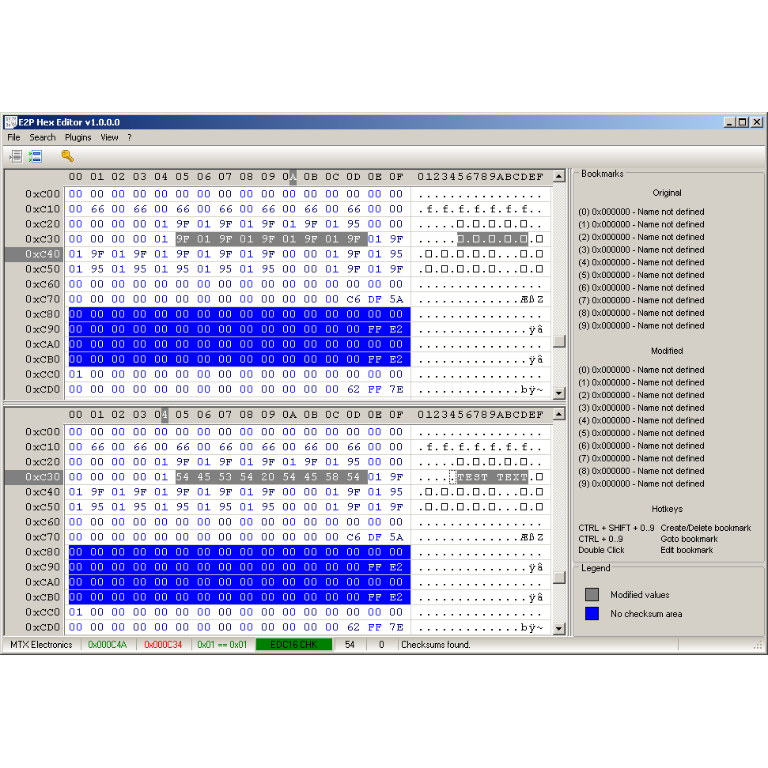
A free, modern Windows software for viewing and editing ECU calibration data - map and hex editors, tuning calculators, and online services.

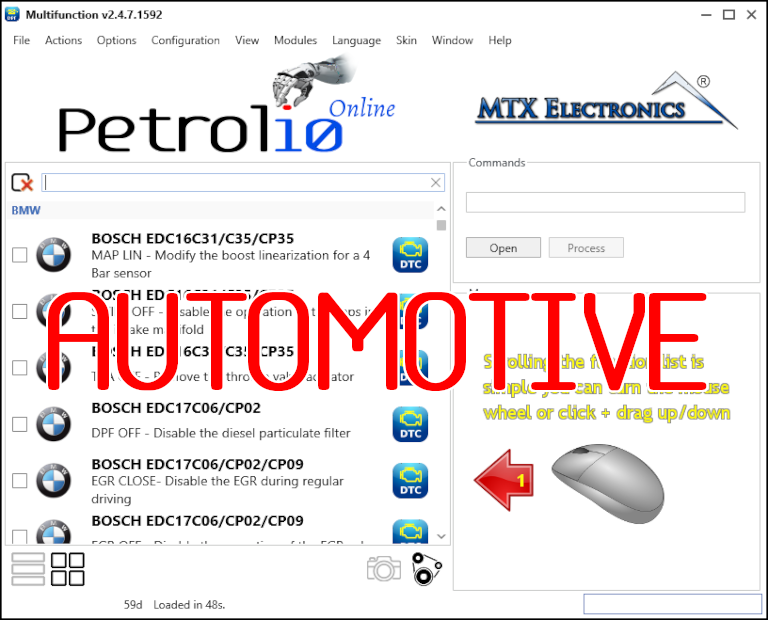
Petrol10 (DPF Remover) - Multi Function - Automotive

Petrol10 (DPF Remover) - Multi Function - Automotive

All-in-one application for tuning experts preparing vehicles for track use. Designed for professional workshops, it simplifies the deactivation of non essential components to unlock true performance.
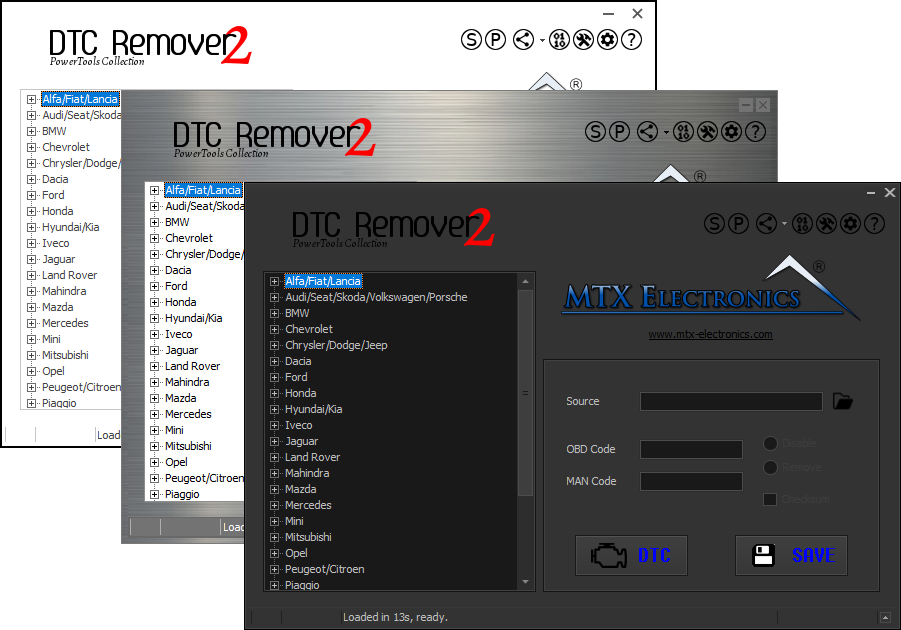
DTC Remover - Clear Fault Codes with Precision

DTC Remover - Clear Fault Codes with Precision

Lets you quickly disable fault codes to turn off the MIL light directly from your ECU file. Available in Standard and PowerTools editions with advanced scripting and online presets to remove faults by component groups.