
The Tools button opens a window of utilities, divided into three options for looking up codes and working with scans (Figure 1).

The first option looks up the description of a fault code you have entered, provided that code is in the software's database (Figure 2).

The second option searches Renault DF codes (the codes used by the official Renault diagnosis) to find the equivalent OBD code and its description, provided it is in the software's database (Figure 3).

The third option lets you open the files you exported with the Scan function and compare them against each other (Figure 4) — handy for checking what changed between two reads of an ECU.

An Upload button lets you submit information to support.
The Share button on the toolbar hands the current file to or from the companion DPF Remover (the multifunction application):
Note — Sharing requires DPF Remover (the multifunction software) to be installed; if it is not, the program tells you so.
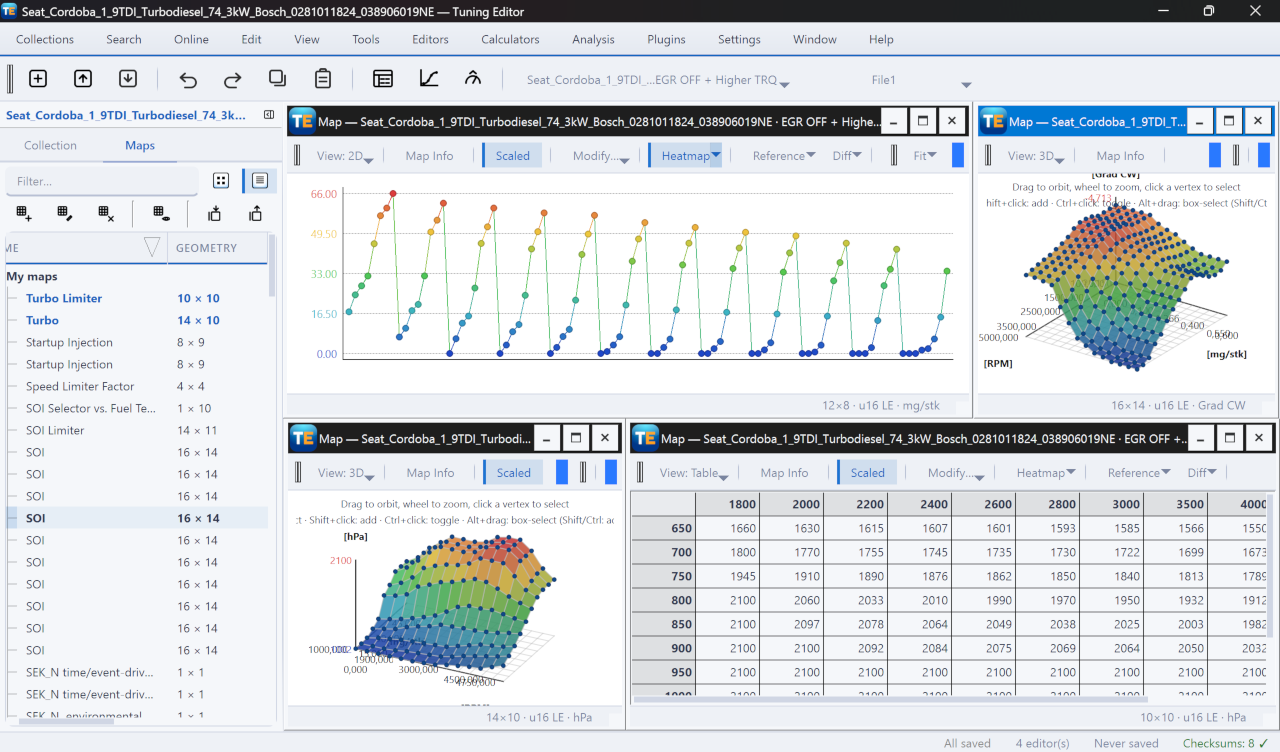
A free, modern Windows software for viewing and editing ECU calibration data - map and hex editors, tuning calculators, and online services.
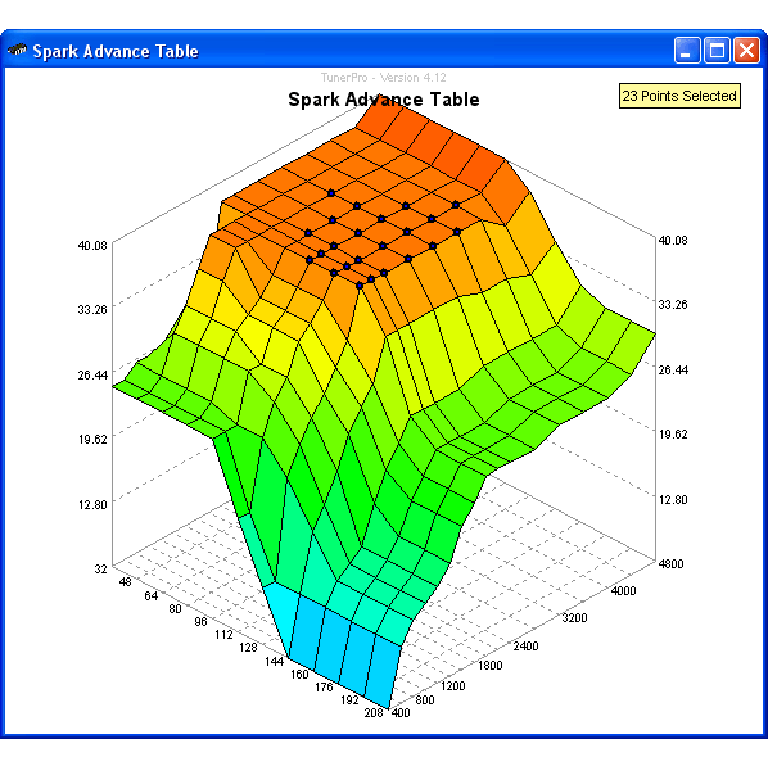
A free collection of checksum correction plugins for TunerPro that ensures safe ECU tuning. Automatically verify and update file checksums for reliable vehicle performance.
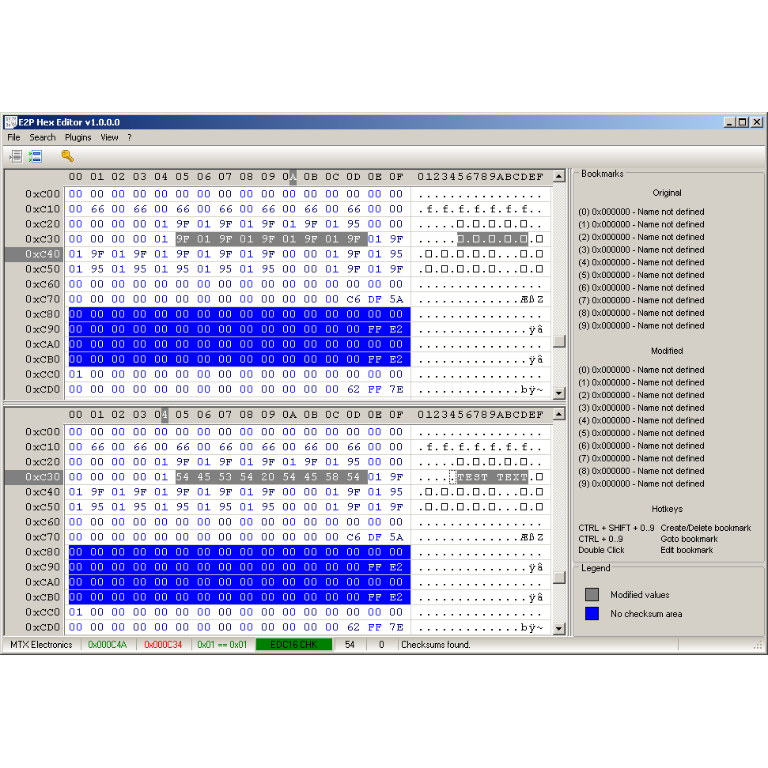
A hex editor built specifically for editing EEPROM data in automotive ECUs. With real-time checksum correction, side-by-side file comparison, and plugin support for automated tasks it's the ultimate tool for professionals.